
How to Make a Google Form: Create a Google Form Using Templates & Quiz Tools
- Ubaid Rehman
- May 21, 2026
- Google Accounts
- 0 Comments
If you want to learn how to make a Google Form, you are not alone. I also started with no experience. Now, I use Google Forms for surveys, quizzes, event signups, and feedback. Google Forms is free and very easy to use. It works on almost all devices. You can collect answers, save data, and see results right away. The best part is that you do not need any coding skills.
In this guide, I will explain how to create a Google Form step by step. I will also share Google Forms templates, quiz tools, QR code sharing, Google Forms with login, and more helpful tips. By the end, you will clearly understand how Google form creation works and feel confident making your own form.
What is Google Forms?
Google Forms is an online form builder from Google. It lets you create surveys, quizzes, and registration forms. Every response saves automatically in your Google account. People use Google Forms for many reasons. Teachers use it for tests. Businesses use it for feedback. Event planners use it for guest lists. Bloggers use it to collect emails. You can create short surveys or long forms. You can add images, videos, and sections. You can even add logic so questions change based on answers.
Types of forms you can build:
- Contact forms
- Event registration forms
- Feedback surveys
- Job applications
- Google Forms quiz
- Login-based forms
Google Forms also works with Google Sheets. This makes data tracking easy.
Getting Started with Google Forms
Requirements to Use Google Forms
You only need a Google account. Any Gmail account works. You can use Google Forms on Windows, Mac, Android, and iPhone.
Supported browsers include:
- Chrome
- Firefox
- Edge
- Safari
You also need internet access. Offline mode does not work for Google Forms.
Opening Google Forms
There are three easy ways.
Method 1: Visit forms.google.com
Method 2: Open Google Drive, click New, then Google Forms
Method 3: Use the Google Apps menu from Gmail
All methods open the same form editor.
How to Create a Google Form
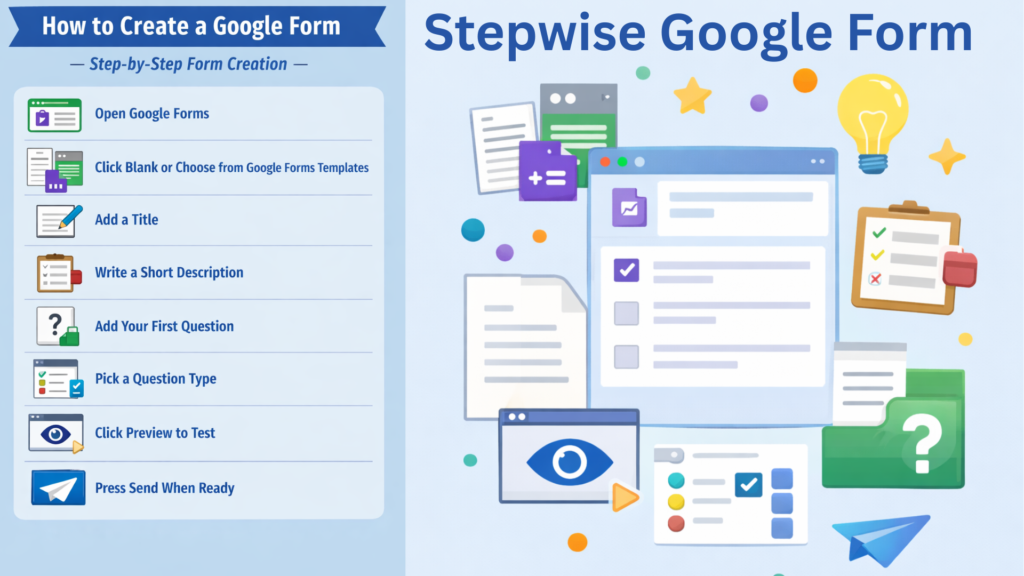
Step-by-Step Form Creation
Here is how I create a google form:
- Open Google Forms
- Click Blank or choose from Google Forms templates
- Add a title
- Write a short description
- Add your first question
- Pick a question type
- Click Preview to test
- Press Send when ready
This is basic Google form creation.
Adding Different Question Types
Google Forms supports many formats.
- Short answer: Good for names and emails
- Multiple choice: One answer only
- Checkboxes: Select many options
- Dropdown: Clean design for long lists
- Linear scale: Ratings from 1 to 5
- File upload: Let users submit files
Each type works for different needs.
Editing Your Form
You can drag questions to reorder them. You can copy any question. You can delete unused sections.
You can also add:
- Images
- YouTube videos
- New sections
This helps organize long forms.
Google Forms Settings and Customization
Customize Appearance
Click the paint icon.
Here you can change:
- Theme colors
- Font style
- Header image
Many users ask about google form header image size. The best size is 1600 x 400 pixels.
This keeps your header clear.
Form Settings You Should Know
Inside settings, you can:
- Collect email addresses
- Limit to one response
- Allow edit after submit
- Shuffle question order
You can also enable google forms with login. This requires users to sign in.
Advanced Tools
Add sections for long forms.
Use logic to send users to different sections based on answers.
This works great for surveys and quizzes.
Google Forms on Mobile
There is no separate app. You open Google Forms in your browser.
On Android, you can:
- Create forms
- Edit questions
- View responses
However, advanced layout edits work better on desktop.
Tip: Always preview on mobile before sharing.
How to Share or Publish Your Form
Ways to Send Your Form
Click Send.
You can:
- Copy link
- Send by email
- Embed on website
- Create a google form qr code
QR codes help with events and posters.
Sharing with Collaborators
1. Click the three dots. Select Add collaborators.
2. You can allow others to edit or only view.
3. Many ask, can google form owners see drafts?
Yes. Owners see all changes.
Collecting and Managing Form Responses
Viewing Responses Tab
Open your form. Click Responses.
You see:
- Summary charts
- Individual answers
Charts update live.
Exporting Results
Click the green Sheets icon. You can also download CSV or Excel. Many users ask how to change google form response chart in google sheet. You open the linked Sheet, click the chart, then edit chart.
Real-Life Uses of Google Forms
Feedback and Surveys
Businesses use Google Forms for reviews. Schools use them for student feedback.
Quiz and Test Builder
Enable Quiz mode. Assign points. Auto-grade answers.
Google Forms quiz saves hours of work.
Event Registration
Create sign-up forms. Track guests. Limit seats.
Perfect for workshops.
Tips and Best Practices
- Use short questions
- Preview before sending
- Group similar questions
- Use sections
- Test your google form qr code
Pros and Cons of Google Forms
Pros
- Free
- Easy setup
- Auto save
- Google Sheets link
- Works on all devices
Cons
- Limited design control
- Needs internet
- No built-in payment
Troubleshooting Common Problems
If responses fail, refresh page.
If form not opening on mobile, clear browser cache.
If you cannot see uploads, check Drive permissions.
Conclusion
Now you understand how to make a Google Form from start to end. You learned how to create a Google Form, change themes, share links, use Google Forms templates, turn on quiz mode, and check responses. Google Forms helps save time and effort. It is useful for schools, businesses, and bloggers. I recommend you practice today. Make your first form, test it, and share it with others.
Frequently Asked Questions
What devices support Google Forms?
Google Forms works on computers, Android phones, iPhones, and tablets. You only need a modern browser and internet access.
Can I password protect a form?
Google Forms does not support passwords directly. You can enable Google Forms with login so only signed-in users access it.
How do I track responses?
Open the Responses tab or link your form to Google Sheets for live data updates.
Can multiple people work on the form?
Yes. Add collaborators. Editors can change questions and settings.
Can I embed a Google Form into my website?
Yes. Click Send, choose Embed, then copy the HTML code.