How to Install Win 11
- Ubaid Rehman
- May 19, 2026
- Computer Networking
- 0 Comments
Introduction
Today I’m going to guide you that how to install windows 11 on your PC. Let’s take a quick look at history first: windows 11 was officially released on October 5, 2021 as the successor to windows 10. Microsoft wanted to modernize the interface, improve security, support newer hardware and bring better experiences for gaming and productivity. Over time it has received many updates and is now widely adopted. Even though many users were comfortable with Windows 10, Windows 11 introduced fresh looks, centered taskbar, widgets, and tighter combo of hardware + software.
In this blog we shal talk about how to install Windows 11 ,what you need to check, some special cases like installing on unsupported hardware, how to skip a Microsoft account, and some typical issues like “installation has failed”. I’ll keep things simple and conversational so you can follow easily.
Check Minimum Requirements for windows 11
Before telling you to install, you should check if your computer meets the basic requirements. According to Microsoft, windows 11 needs at least:
A 64-bit processor (x86-64 or ARM64).
4 GB RAM and 64 GB storage as minimum.
UEFI firmware with Secure Boot and TPM 2.0 enabled.
If your PC doesn’t meet these, you may get a message like: “this pc doesn’t meet the minimum requirements for windows 11”. That means you might not be officially supported.
Preparing for Installation
Before you choose how to install the OS, here are some preparations:
- Backup your important files (documents, photos, etc.).
- Make sure your PC’s BIOS/firmware is updated (some people call this bios update utility).
- If installing on a new PC or replacing an old OS, make sure you have a USB drive (for example a windows 11 flash drive).
- Decide which edition you want: windows 11 home vs pro for gaming or maybe windows 11 enterprise depending on your usage.
- If you have older hardware or unsupported CPU, decide whether you will risk installing on it (see section below on installing on unsupported hardware).
- Download the official ISO windows 11 if you want a clean install or offline method.
Methods to Install windows 11
There are multiple methods to perform the install, depending on your situation.
Upgrade from windows 10 to 11
If your current PC is running windows 10 and meets the requirements, you can upgrade rather than doing a full fresh install.
- Go to Settings → Update & Security → Windows Update and check for the windows 11 update assistant (or installer assistant).
- Follow the prompts: accept licence, backup, download and install.
- This method keeps your files and many settings (though always good to backup).
Clean Install (New PC / Fresh OS)
If you have a brand-new PC or want to wipe and install fresh:
- Create a bootable USB with the windows 11 flash drive or use the media creation tool.
- Insert USB and boot from it (change BIOS boot order if needed).
- Choose “Custom: Install Windows only (advanced)”.
- Select the drive/partition and install.
- This is especially useful if you are doing how to install windows on a new pc scenario.
Install without Microsoft Account
For users who prefer local accounts, there are ways to install windows 11 without microsoft account or skip the MS-account step (windows 11 skip microsoft account). Depending on the version/edition you may find these options:
- In Home edition, Microsoft sometimes forces a Microsoft account during setup if you are online, so you might need to either disconnect from internet or use workarounds.
- In Pro/Enterprise you may get “Offline account” option.
- This gives you more control if you don’t want to tie your PC to a Microsoft account.
Installing on Unsupported CPU or Hardware
Some older PCs may not meet the official hardware list but people still try to install install windows 11 on unsupported cpu or install windows 11 on unsupported hardware.
- It’s possible via registry hacks or ISO modifications, but you should be aware: you may lose official updates, warranty support or run into driver issues.
- Many users on Reddit have discussed:
“Should I install windows 11 on unsupported hardware reddit” — there’s risk involved.
Use this only after weighing the pros and cons.
Step-by-Step Walkthrough of Installation
Here’s a simplified step-by-step for a fresh install:
- Download the ISO windows 11 from Microsoft’s site (or via the media creation tool).
- Use a tool (e.g., Rufus) to create a bootable USB (windows 11 home usb, for example).
- Insert the USB, reboot PC, enter BIOS/UEFI and set USB as first boot device.
- Boot the USB, you’ll see the setup wizard.
- Choose language, time, keyboard layout.
- Click “Install now”.
- If you have a licence key (for example you bought a key or have OEM key) enter it, or choose “I don’t have a product key”.
- Choose the edition you want (Home, Pro, Enterprise).
- Accept Licence agreement.
- Choose installation type: “Custom” for fresh install. Choose drive/partition.
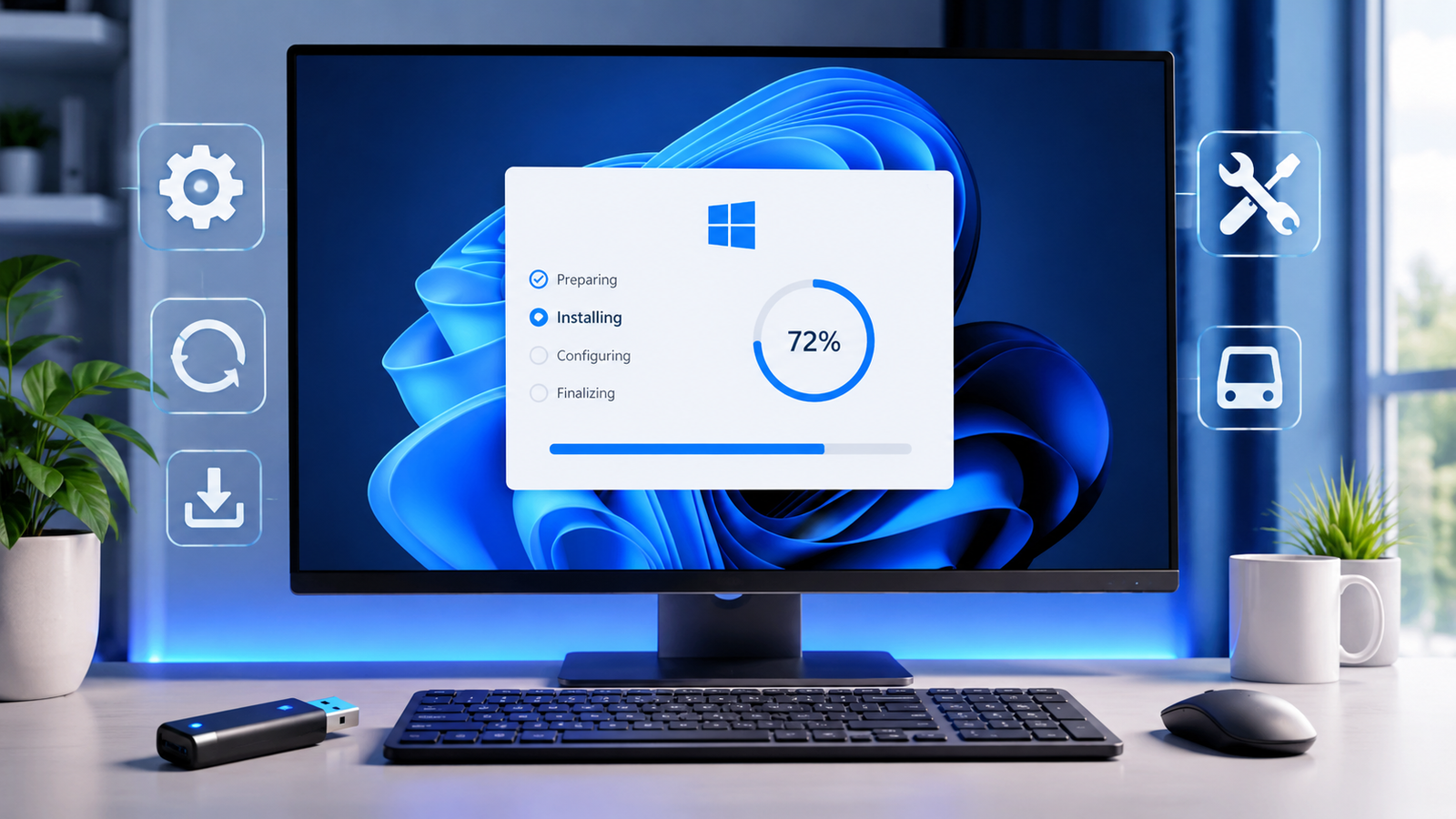
- Setup will copy files, install features/updates, restart.
- Follow the on-screen prompts for region, keyboard layout, account setup (or skip as above), privacy settings, etc.
- After installation you’ll reach the desktop for the first time.
- Install drivers (for example realtek drivers windows 11 for audio/ethernet) to make sure all hardware works.
Typical Install Duration
| Scenario | Approximate Time |
| Upgrade from Windows 10 on modern PC | 20-40 minutes |
| Clean install on new PC | 15-30 minutes (depending on hardware) |
| Install on older/unsupported hardware | 30-60+ minutes (may have extra steps) |
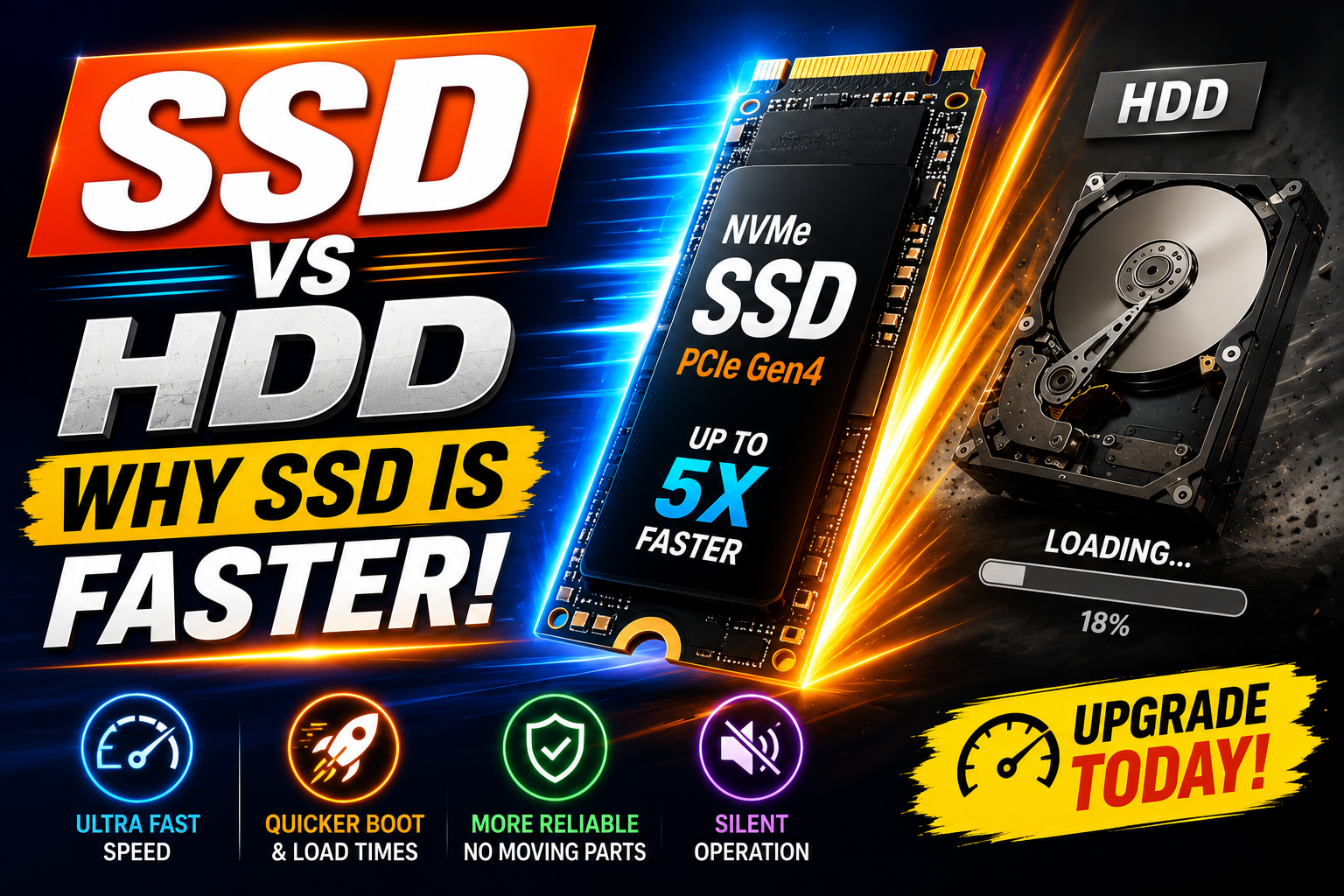
So if you ask how long does windows 11 take to install, it depends on hardware, SSD vs HDD, internet speed, updates, etc.
Common Issues & Troubleshooting
Even when following all steps carefully, sometimes things go wrong. Here are some common issues:
“windows 11 installation has failed”
You might see errors like “Your PC couldn’t be upgraded” or “The installation failed”. Some causes:
- Hardware incompatibility (e.g., TPM 2.0 not enabled).
- Insufficient storage space.
- Corrupted installation media.
- Driver or firmware conflicts.
- In these cases, check logs, ensure BIOS is updated, disable unnecessary peripherals, try clean install instead of upgrade.
“windows 11 update ssd failures”
Some users have reported SSD failures or performance issues after updating/upgrading to Windows 11. It’s wise to ensure your SSD firmware is updated and your storage drivers are current. If you’re using older SSD or unsupported hardware, be cautious about installing.
Editions & Licensing Issues
You might wonder about editions like windows 11 pro vs enterprise, windows 11 education, or windows 11 government edition iso. Each has different features, support lifecycles, and licensing costs.
- Pro: Good for advanced users with features like BitLocker, group policy.
- Enterprise: More for businesses, with longer support, advanced management.
- Education: For schools and students; sometimes lower cost.
- If doing an upgrade such as how to upgrade to windows 11 pro, you can purchase a Pro key and change edition in Settings.
Should You Upgrade / Is It Worth It?
A big question: is windows 11 worth it? Let’s weigh a few points:
Pros
- Fresh UI and modern look.
- Better security baseline (TPM 2.0, Secure Boot, virtualization-based security). Wikipedia+1
- Improvements in gaming (e.g., Auto HDR, DirectStorage) on supported hardware.
- Long term support: according to Microsoft the service life for each version is 24 months for Home/Pro, 36 months for Enterprise/Education. Pureinfotech+1
Cons
- More stringent hardware requirements—old PCs may be unsupported.
- Some users reported driver or hardware issues when upgrading. For example from Reddit:
“I updated when it came out it was total mess … so I reverted back to windows 10”
- Learning curve—some UI changes may require adaptation.
- If you’re using a PC purely for very basic tasks and are comfortable with Windows 10, the improvement may feel modest.
So if your hardware supports it well, upgrading to Windows 11 is a good move. If you run an older machine, you might decide to wait or consider installing on unsupported hardware with caution.
Extra Tips & Tricks
- If you want to create your own installation media: look for iso win 11 (ISO Win 11) to download from official Microsoft site.
- Keep your drivers up to date—especially for network adapter driver windows 11, Realtek drivers windows 11 (realtek ethernet controller driver windows 11 download).
- If you plan to buy a licence, look for buy windows 11 home key cheap (but always make sure it’s a legitimate licensed key).
- If you are into gaming, check “windows 11 home vs pro for gaming” to see whether Pro features matter to you.
- For business or workstation use, “windows 11 pro for workstations license” might be relevant.
- If your PC is older and unsupported, search “best way to install windows 11 in old pc” but remember you may lose future updates.
Conclusion
Installing windows 11 can be straightforward if your hardware is compatible and you follow the proper steps. Whether you’re upgrading from Windows 10, doing a fresh install on a new PC, or even installing on unsupported hardware (with risk), you now have a clear path. Key points to remember: check requirements, backup your data, choose the right installation method, be prepared for issues, and decide whether it’s worth upgrading for you.
FAQ
Q1: How long does it take to install Windows 11?
A: It depends on your hardware. On a modern SSD it might take 15-30 minutes for a fresh install. On older hardware it may take longer. (See the table above.)
Q2: Can I install Windows 11 without a Microsoft account?
A: Yes, through the “Offline account” option or by disconnecting from internet during setup, you can skip the Microsoft account step. (See the section on skipping MS account.)
Q3: What if my PC doesn’t meet the official requirements—can I still install Windows 11?
A: Technically yes via workarounds but it’s not officially supported and might affect updates or stability. (Refer to installing on unsupported hardware.)
Q4: What edition should I pick—Home, Pro or Enterprise?
A: If you’re a regular home user, Home edition is fine. If you need advanced features like BitLocker, group policy, join domain, go for Pro. Enterprise is for businesses with larger deployments.
Q5: Should I upgrade now or wait?
A: If your PC is compatible and you want the new features/security, go ahead. If you’re happy on Windows 10 and your hardware is older, you might wait and plan for a future upgrade.