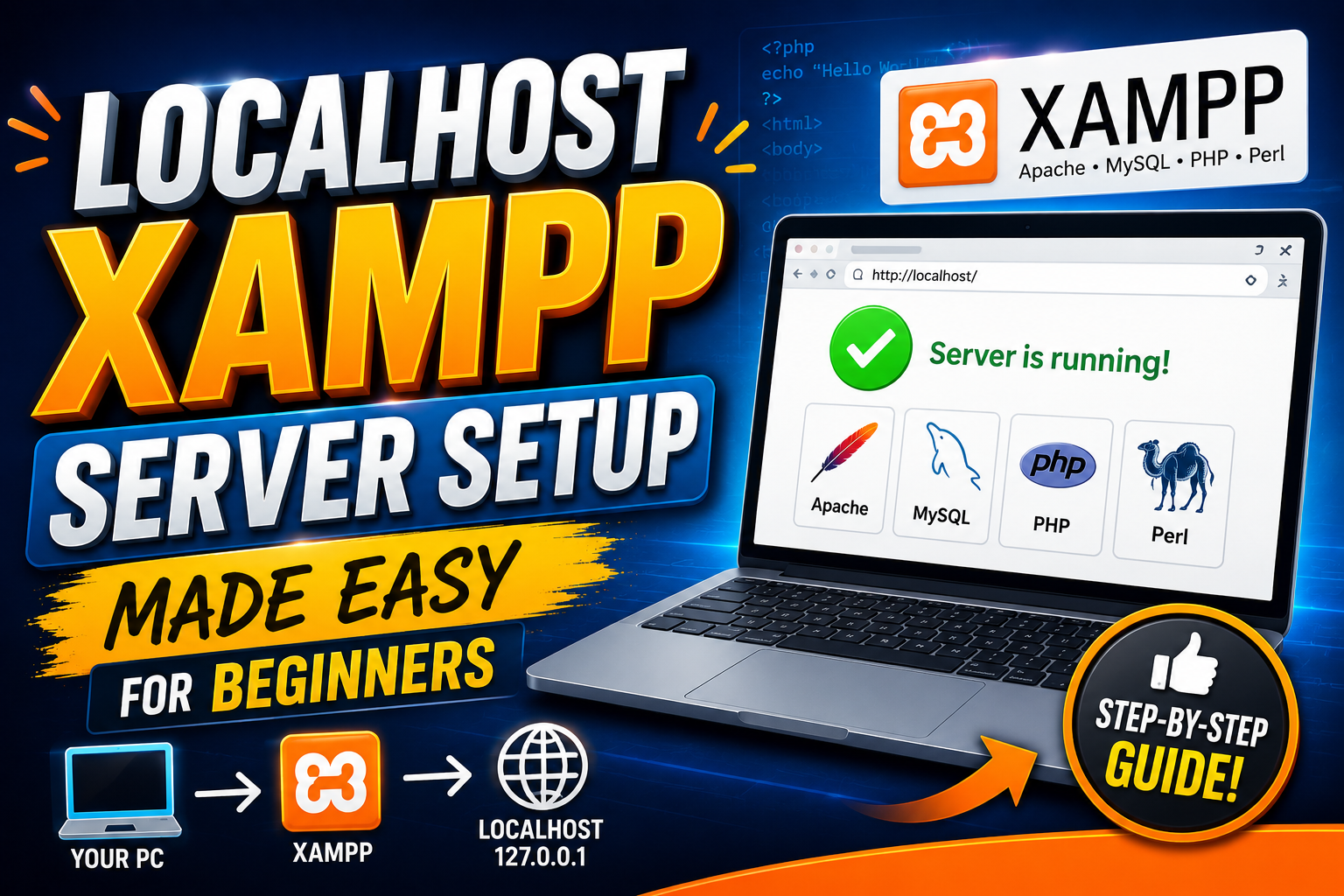
Localhost XAMPP Server Setup Made Easy for Beginners
- Ubaid Rehman
- December 12, 2025
- Local Servers
- 0 Comments
If you have ever wanted to host a website locally or test your PHP projects offline, then learning about localhost XAMPP is the very suitable platform to start. Whether you’re an inexperienced web developer or someone curious about how servers work, this guide will help you understand what XAMPP server is, why it’s useful, and how to use it step by step.
Before studying the technical details, let’s look at a bit of history. The XAMPP server was developed by Apache Friends (also known as apache friends org) — a non-profit project. It was started to make the installation of Apache, MySQL, PHP, and Perl easy to use for everyone. Interestingly, the name “XAMPP” itself stands for Cross-platform (X), Apache (A), MySQL (M), PHP (P), and Perl (P). Over the years, it has therefore become one of the most trending tools for local development environments.
What Is the XAMPP Server?
The XAMPP server is a free and open-source web server solution package. It was developed by Apache Friends, and it allows users to create a local web server environment right on their own computers. In other words, you don’t need an online server to run and test your web projects.
If you have ever worried about what XAMPP is for, the answer is simple: it is developed to make web development and testing easier. With XAMPP, you can run websites, web applications, and even install CMS platforms like WordPress or Joomla locally before making them live.
Here’s what comes inside XAMPP server:
| Component | Purpose |
|---|---|
| Apache | Acts as the main web server |
| MySQL (or MariaDB) | Database management |
| PHP | Server-side scripting language |
| Perl | Additional programming support |
| FileZilla, Mercury Mail, Tomcat | Optional modules for extra functionality |
Why Use Localhost XAMPP?
Using localhost XAMPP makes you able to test your website in a safe environment before making it public. This is especially good for learners who are just learning web development, and also for experienced developers who want to test updates without affecting a live website.
Some key benefits of using XAMPP server include:
- It is free and easy to install.
- You can test PHP, MySQL, and Apache locally.
- You can run your projects without an internet connection.
- It’s perfect for trying out CMS installations like install WordPress in XAMPP or install WordPress XAMPP.
Furthermore, you can even learn how anybody can open a XAMPP file through the Control Panel after installation — it is simple and user-friendly.
How to Install and Run the XAMPP Server
Installing XAMPP server is straightforward. Here is a quick step-by-step guide:
- First, go to the official Apache Friends website (apache friends org) and XAMPP download for your operating system (Windows, macOS, or Linux).
- Next, run the installer and follow the prompts carefully.
- Then, open the XAMPP Control Panel.
- After that, start Apache and MySQL modules.
- Once running, open your browser and type localhost/dashboard or localhost/dashboard/.
At this point, you should see the default localhost dashboard screen. This means your XAMPP server is working perfectly and properly.
If you want to view your project files, simply place them inside the htdocs folder located in the XAMPP directory. In addition, you can also visit localhost/dashboard/htdocs to check your custom project files.
Using XAMPP for MySQL and PHP
One of the main reasons developers love XAMPP server is because it supports XAMPP for MySQL and PHP perfectly. You can therefore connect your PHP scripts to a MySQL database easily and quickly.
Moreover, you can test or analyze different PHP versions such as PHP 8.2 Apache or PHP 8.3 XAMPP. For those who prefer portable setups, there’s a XAMPP portable version too — no installation needed!
If you ever notice httpd.exe errors, don’t worry — it’s usually because another application (like Skype) is using port 80. Simply change the port in the Apache configuration file to fix it quickly.
Hosting a Website Locally with XAMPP
Wondering how to host website XAMPP locally? It’s easy and efficient:
- First, move your project folder to the htdocs directory.
- Then, open your browser and type 127.0.0.1/dashboard or localhost/dashboard/.
- Finally, you will see your website running locally!
As a result, this is a great way to test your site before uploading it to an actual web host.
XAMPP and WordPress: A Perfect Pair
You can easily install WordPress in XAMPP to test your themes and plugins offline. Consequently, WordPress will run exactly like it does online.
Steps:
- Download WordPress.
- Extract it into the htdocs folder.
- Open phpMyAdmin and create a new database.
- Run the WordPress installer through your browser at localhost/wordpress.
And that’s it — you’ve got WordPress running locally on your XAMPP server!
Common Questions: Is XAMPP Safe?
Many beginners ask, is XAMPP safe? Yes, it is safe for local use. However, it’s not recommended to use XAMPP online as a public web server because it lacks certain security settings.
If you want to make your local server more secure, use the UAC XAMPP (User Access Control) and change default passwords in the configuration files. In addition, always avoid downloading from unofficial sources.
XAMPP Alternatives and Comparisons
While XAMPP server is very popular, you might also want to explore other tools such as:
- LAMPP – the Linux version of XAMPP.
- MAMP vs XAMPP – MAMP is another local server tool for macOS and Windows.
- XAMPP alternative – WAMP or Laragon are good choices for Windows users.
Besides these, there are also tools like XAAP, XAMPL, and EXAMP. Nevertheless, XAMPP server remains the most user-friendly option overall.
Fun Facts About Apache Friends
Are you aware that the Friends of Apache team (or Apache Friends) created XAMPP server back in 2002? Their main goal was to make server configuration simple for everyone — even beginners. As a result, the XAMPP logo with its orange “X” has now become recognized worldwide by developers.
Troubleshooting and Extra Tools
Sometimes users may face issues like télécharger sam torrent fake downloads or corrupt versions. Therefore, always download from the official apache friends org website.
If you need to manage multiple versions, check the 10 8.2 version line or look into the XAMPP portable version for quick testing environments.
Conclusion
In short, the XAMPP server is an easy way to create a local web environment. It includes Apache, MySQL, PHP, and more — all wrapped in one simple package. With localhost XAMPP, you can test, learn, and experiment safely before moving your projects online.
Whether you’re new to learning PHP or a professional developer setting up a test environment, XAMPP server is therefore a must-have tool in your development journey.
FAQ: Localhost XAMPP
Q1. What is XAMPP for?
A: XAMPP server is used to create a local server environment for testing websites and web applications offline.
Q2. Is XAMPP safe?
A: Yes, XAMPP server is safe for local use, but avoid hosting it publicly without extra security.
Q3. How do I install WordPress in XAMPP?
A: Download WordPress, place it in the htdocs folder, create a database in phpMyAdmin, and run the installer at localhost/wordpress.
Q4. What is Tomcat XAMPP?
A: Tomcat XAMPP refers to the Java servlet engine included in XAMPP for running Java-based web apps.
Q5. What is the difference between MAMP and XAMPP?
A: MAMP vs XAMPP – MAMP is mainly for macOS, while XAMPP is cross-platform and includes more tools.